7. Utility Plugins
The GDSC plugins provide various utility tools for image analysis. The tools include:
Difference of Gaussians and Laplacian of Gaussian filters for contrast enhancement
Image alignment
Mask conversion and measurement tools
The plugins are described in the following sections using the order presented on the
Plugins > GDSC > Utils menu.
7.1. Contrast Enhancer
Runs the ImageJ contrast enhancer (see Process > Enhance Contrast) on all the open images using 0.35% saturated pixels. This allows a one-click adjustment of all the open images for optimal viewing.
7.2. Difference of Gaussians
Performs a difference of Gaussians filter for local contrast enhancement. The filter performs subtraction of one blurred version of an image from another, less blurred version of the original. The result is an image containing only the information contained within the spatial frequency between the two blurred images.
The image is blurred using a Gaussian filter with a large standard deviation (Sigma1) and a small standard deviation (Sigma2). The large blur is subtracted from the small blur. The large blur removes the local background and the small blur removes the noise, leaving features with a size between the two scales.
The filter supports all image types. A colour image is filtered in each colour channel. The filtered image is written to the input image type; for an 8-bit or 16-bit image any negative values are set to zero. Convert the image to 32-bit to keep negative values.
7.2.1. Plugin Interface
The Difference of Gaussians plugin uses a standard ImageJ dialog. The following parameters can be configured:
Parameter |
Description |
|---|---|
Sigma1 (Radius) |
The standard deviation of the large Gaussian blur. This defines the scale of the local contrast to remove. This must be larger than |
Sigma2 (Radius) |
The standard deviation of the small Gaussian blur. This defines the scale of the noise to remove. |
Maintain Ratio |
If selected then changing one sigma updates the other sigma to keep the same ratio between them. |
Scaled Units |
If selected then the sigma values are in the calibrated units of the image; otherwise they are in pixels. This option is only shown if the image is calibrated. |
Enhance Contrast |
Set the display range of the filtered image using 0.35% saturated pixels. |
Preview |
Show the filtered image. The preview is updated when the parameters are changed. |
7.2.2. Output
The filtered image replaces the pixels of the input image. The change can be reverted using Edit > Undo. If the image has an area ROI then only the pixels within the ROI are filtered. For a stack image ImageJ asks if all the image planes should be processed.
7.3. Laplacian of Gaussian
Performs a Laplacian of Gaussian filter for local contrast enhancement.
The Laplacian is the sum of the second derivatives of the image in the X and Y directions. The derivatives are computed after smoothing the image with a Gaussian filter. The filter has a strong response for round features (blobs) with a radius of approximately 1.41 times the Gaussian standard deviation. A bright blob has a negative response; a dark blob has a positive response.
Requires the Image Science library (see Installation instructions).
The filter supports 8-bit, 16-bit and 32-bit images. The filtered image is written to the input image type; for an 8-bit or 16-bit image any negative values are set to zero. Convert the image to 32-bit to keep negative values, or use the Negate option to show bright blobs.
7.3.1. Plugin Interface
The Laplacian of Gaussian plugin uses a standard ImageJ dialog. The following parameters can be configured:
Parameter |
Description |
|---|---|
Sigma (Radius) |
The standard deviation of the Gaussian filter. Use a value of the expected feature radius divided by 1.41. |
Scaled Units |
If selected then the sigma is in the calibrated units of the image; otherwise it is in pixels. This option is only shown if the image is calibrated. |
Scale normalised |
Multiply the result by the square of the sigma. This allows the response of filters with different sigma to be compared. |
Negate |
Negate the result. Bright blobs have a positive response. |
Enhance Contrast |
Set the display range of the filtered image using 0.35% saturated pixels. |
Preview |
Show the filtered image. The preview is updated when the parameters are changed. |
7.3.2. Output
The filtered image replaces the pixels of the input image. The change can be reverted using Edit > Undo. For a stack image ImageJ asks if all the image planes should be processed.
7.4. Align Images
Aligns an image stack to a reference image using XY translation to maximise the normalised correlation. Outputs a new stack with the best alignment with optional sub-pixel accuracy (performed using a Gaussian fit or cubic spline fit).
Contains options to:
Restrict the translation space
Provide a mask image to specify which pixels to include in the analysis
Clip the bicubic interpolated output to fit within the min-max of the original image
Each image in the target stack is compared to the reference image at every translation within the configured range. The score is the Pearson correlation of the overlapping pixels. Pixels with a value of zero, or a saturated value (the maximum of an 8-bit, 10-bit, 12-bit or 16-bit image), are ignored. The translation with the highest score is used to align the target image.
This plugin computes the correlation directly at each translation. It is slow for a large translation range; in this case use the Align Images FFT plugin.
7.4.1. Plugin Interface
The Align Images plugin uses a standard ImageJ dialog. The images must be greyscale (8-bit, 16-bit or 32-bit). The following parameters can be configured:
Parameter |
Description |
|---|---|
Reference image |
The reference image. The current image plane is used. |
Reference mask |
An optional mask image. Only pixels in the reference image where the mask is non-zero are used to compute the correlation. The mask must have the same width and height as the reference image. |
Target image |
The image stack to align. Each image plane is aligned to the reference. Use |
Min X translation |
The minimum translation in the X direction (in pixels). |
Max X translation |
The maximum translation in the X direction (in pixels). |
Min Y translation |
The minimum translation in the Y direction (in pixels). |
Max Y translation |
The maximum translation in the Y direction (in pixels). |
Sub-pixel method |
The method used to refine the translation with sub-pixel accuracy:
|
Interpolation |
The interpolation method used to translate the image by a sub-pixel offset: |
Clip output |
Bicubic interpolation can create values above the maximum of the original image. If selected then these values are set to the maximum of the original image. |
Show correlation image |
Show a stack of the scores for each translation. The image has a pixel for each translation in the range, starting from the minimum translation. |
7.4.2. Output
The aligned stack is shown as a new image named using the target image title with the suffix Aligned. The optional correlation image uses the suffix Correlation. If an image with the same name is open then it is replaced.
The plugin records the best translation for each image plane to the ImageJ log:
Best Slice 1 x 2.08 y -1.13 = 0.948 (interpolated score 0.951)
The x and y values are the translation; the score is the correlation at the best integer translation. If a sub-pixel method is used then the score is also estimated at the sub-pixel translation. The text Best Slice*** marks a translation at the limit of the range; in this case the range should be increased.
If the inputs are invalid, for example the mask is a different size to the reference, then an error is shown and no output is created.
7.5. Align Images FFT
Aligns an image stack to a reference image using XY translation to maximise the normalised correlation. The correlation is computed in the frequency domain using a fast Fourier transform (FFT). Edge artifacts of the frequency domain are reduced by using a window function on the image (gradually reducing the edge pixels to zero).
Outputs a new stack with the best alignment with optional sub-pixel accuracy (performed using a cubic spline fit).
Note: This plugin is faster than the Align Images plugin for large images and/or a large translation space. Note that the results will differ slightly due to the use of different correlation methods.
The images are padded to a square with a power of 2 size for the FFT. By default the translation is restricted so that at least half of the smaller image overlaps the larger image.
7.5.1. Plugin Interface
The Align Images FFT plugin uses a standard ImageJ dialog. The images must be greyscale (8-bit, 16-bit or 32-bit). The following parameters can be configured:
Parameter |
Description |
|---|---|
Reference image |
The reference image. The current image plane is used. |
Target image |
The image stack to align. Each image plane is aligned to the reference. Use |
Window function |
The window function applied to the images before the correlation is computed: |
Restrict translation |
Restrict the translation to the configured range. If not selected then the translation is restricted so that at least half of the smaller image overlaps the larger image. |
Min X translation |
The minimum translation in the X direction (in pixels). |
Max X translation |
The maximum translation in the X direction (in pixels). |
Min Y translation |
The minimum translation in the Y direction (in pixels). |
Max Y translation |
The maximum translation in the Y direction (in pixels). |
Sub-pixel method |
The method used to refine the translation with sub-pixel accuracy:
|
Interpolation |
The interpolation method used to translate the image by a sub-pixel offset: |
Clip output |
Bicubic interpolation can create values above the maximum of the original image. If selected then these values are set to the maximum of the original image. |
Normalised |
Normalise the correlation using the intensity of the reference image under the target image at each translation. The score is in the range -1 to 1. If not selected then the correlation is not normalised and bright regions of the reference image can dominate the alignment. |
Show correlation image |
Show a stack of the correlation scores. |
Show normalised image |
Show the reference and target images after the window function and padding are applied. |
7.5.2. Output
The aligned stack is shown as a new image named using the target image title with the suffix Aligned. The optional images use the suffixes Correlation, Normalised Ref and Normalised Target. If an image with the same name is open then it is replaced.
The plugin records the best translation for each image plane to the ImageJ log:
Best Slice 1 x 2.08 y -1.13 = 0.948 (interpolated score 0.951)
7.6. Align Stacks
Aligns open image stacks to a reference image using XY translation to maximise the normalised correlation. Accepts multi-dimensional stacks. The self-align mode aligns all timepoints within a stack to the current frame.
For each timepoint a z-projection (e.g. maximum or average intensity) is performed per channel. The projection is thresholded using the Otsu method to extract the signal, normalised to 0-255 and the resulting channel images are tiled to a composite image. The composite is then aligned using the maximum correlation between the images computed using a fast Fourier transform (FFT) with an optional window function. Using a composite ensures each channel contributes equally to the alignment. The translation is applied to the entire stack for that timepoint.
The plugin has two modes:
Align other stacks: All open images with the same type and dimensions as the reference image are aligned. If the reference has a single frame then each frame of the other images is aligned to the reference; only the width, height and channels must match. If the reference has multiple frames then each frame of the other images is aligned to the same frame of the reference; all the dimensions must match.
Self-align: Each frame of the reference image is aligned to its current frame.
The aligned images are modified in place. This cannot be undone. The reference image is not modified, except in the self-align mode.
7.6.1. Plugin Interface
The Align Stacks plugin uses a standard ImageJ dialog. The images must be greyscale (8-bit, 16-bit or 32-bit). The following parameters can be configured:
Parameter |
Description |
|---|---|
Reference image |
The reference image. |
Self-align |
Align all the frames of the reference image to its current frame. |
Projection |
The z-projection method used to create a single image for each channel of a frame. |
Window function |
The window function applied to the images before the correlation is computed: |
Restrict translation |
Restrict the translation to the configured range. If not selected then the translation is restricted so that at least half of the image overlaps the reference. |
Min X translation |
The minimum translation in the X direction (in pixels). |
Max X translation |
The maximum translation in the X direction (in pixels). |
Min Y translation |
The minimum translation in the Y direction (in pixels). |
Max Y translation |
The maximum translation in the Y direction (in pixels). |
Sub-pixel method |
The method used to refine the translation with sub-pixel accuracy:
|
Interpolation |
The interpolation method used to translate the image by a sub-pixel offset: |
Clip output |
Bicubic interpolation can create values above the maximum of the original image. If selected then these values are set to the maximum of the original image. |
The self-align mode can be run from a macro using:
call('uk.ac.sussex.gdsc.ij.utils.AlignStacks_PlugIn.selfAlign');
This shows the dialog with the self-align mode selected for the current image.
7.7. Image Scaler
Scales all images in a stack by a single factor so that the maximum of the stack is set to the specified value. For example this can be used to scale a floating point image so that the maximum is 255 for correct display.
Can accept a list file of images allowing a set of images to be scaled together. The maximum of the entire set of images is used to calculate the scale factor applied to each image. Note that in this mode each image file is overwritten with the scaled image.
7.7.1. Plugin Interface
The Image Scaler plugin uses a standard ImageJ dialog. The following parameters can be configured:
Parameter |
Description |
|---|---|
Max |
The new maximum value of the image(s). |
List file |
A text file containing the full path of an image file on each line. Lines that are not the path of an existing file are ignored. If specified then the images in the list file are scaled; otherwise the current image is scaled. |
Output
The pixel values are multiplied by the scale factor in place. For an image list each scaled image is saved, replacing the original file. This cannot be undone.
The image type is not changed. An 8-bit or 16-bit image is limited to the maximum value of the type, e.g. 255 for an 8-bit image.
An error is shown if there is no image or list file, if the list file does not exist, or if the images have no range of values.
7.8. Spot Analyser
Identifies particles (e.g. cells) using a Gaussian blur and thresholding, and excludes small particles based on pixel count and particles touching the image edge. The top N spots (Max peaks) are identified within each particle using the FindFoci algorithm; each spot region is defined using a fraction of the spot height. The average intensity of each channel inside and outside the spot regions is then compared using a t-test to identify increases in signal within spot regions.
The plugin analyses the current z-slice and frame of an 8-bit or 16-bit image. The image can have multiple channels.
7.8.1. Plugin Interface
The Spot Analyser plugin uses a standard ImageJ dialog. The following parameters can be configured:
Parameter |
Description |
|---|---|
Mask option |
Only shown if the image has an area ROI. |
Threshold Channel |
The channel used to identify the particles. |
Blur |
The standard deviation of the Gaussian blur applied to the threshold channel before thresholding. |
Threshold method |
The automatic threshold method used to identify the particles. |
Spot Channel |
The channel used to identify the spots. |
Min size |
The minimum size of a particle (in pixels). Particles touching the image edge are excluded. |
Show particles |
Show an image of the particles. Each particle has a unique value. |
Max peaks |
The maximum number of spots to identify in each particle. The highest spots are used. |
Fraction |
The fraction of the spot height used to define the spot region. A higher fraction creates a smaller spot region around the spot maximum. |
Show spots |
Show an image of the spot regions. Each spot region has the value of its particle. |
Preview |
Show the particles on the image and the number of particles in the dialog. |
7.8.2. Results Table
The Spot Analyser Results table contains two sets of rows. The first set has a row for each particle with the number of pixels inside and outside the spot regions (in the Inside Sum and Outside Sum columns). The second set has a row for each channel and particle with the following information:
Result |
Description |
|---|---|
Image |
The image title. |
Channel |
The channel. |
Particle |
The particle number. |
Inside Sum |
The sum of the pixels inside the spot regions of the particle. |
Av |
The mean of the pixels inside the spot regions. |
SD |
The standard deviation of the pixels inside the spot regions. |
R |
The correlation of the pixels inside the spot regions with the spot channel. This is 1 for the spot channel. |
Outside Sum |
The sum of the pixels in the particle outside the spot regions. |
Av |
The mean of the pixels outside the spot regions. |
SD |
The standard deviation of the pixels outside the spot regions. |
R |
The correlation of the pixels outside the spot regions with the spot channel. |
Increase |
The ratio of the mean inside the spot regions to the mean outside the spot regions. |
p-value |
The p-value of a t-test that the means inside and outside the spot regions are the same. |
7.9. HSB Picker
Installs a tool into the ImageJ toolbar that allows Hue-Saturation-Brightness (HSB) values to be sampled from an RGB image by mouse click. Pixels are sampled using a radius around the clicked position. The average HSB values and the standard deviations from all sampled pixels are shown in a frame.
Provides the ability to call the HSB Filter. The filter values are set using the averages and the widths using the scaled standard deviations (e.g. av +/- scale * std.dev.).
The plugin opens the HSB Picker window and selects the HSB Picker Tool in the ImageJ toolbar. Each click on an RGB image with the tool adds the pixels around the clicked position to the sample. Clicks on other image types are ignored. Hue, saturation and brightness are each in the range 0 to 1.
7.9.1. Plugin Interface
The HSB Picker window has the following controls:
Control |
Description |
|---|---|
Sample radius |
The radius (in pixels) of the circle around the clicked position used to sample pixels. Use zero to sample only the clicked pixel. |
Pixels |
The number of sampled pixels. |
Hue |
The mean and standard deviation of the hue of the sampled pixels. |
Saturation |
The mean and standard deviation of the saturation of the sampled pixels. |
Brightness |
The mean and standard deviation of the brightness of the sampled pixels. |
Reset |
Clear the sampled pixels. |
Filter scale |
The factor used to convert the standard deviation to the width of the filter. |
HSB Filter |
Run the HSB Filter plugin on the current image. Each filter value is set to the mean of the sampled pixels and the width to the standard deviation multiplied by the |
Close |
Close the window. |
Help |
Show this documentation. |
The position of the window is saved when it is closed. If the window is open then running the plugin brings it to the front.
7.10. HSB Filter
Provides the ability to filter pixels in an RGB image using Hue-Saturation-Brightness (HSB) values. All pixels not within the specified width of the given values are set to zero.
Note that hue is a continuous property where values are wrapped around from 1 to 0.
Each pixel is converted to HSB values in the range 0 to 1. A pixel is kept if its hue, saturation and brightness are each within the width of the configured value, i.e. in the range value - width to value + width. The hue difference is measured around the colour circle, for example a hue of 0.98 is 0.07 from a hue of 0.05. All other pixels are set to black. The values can be set using the HSB Picker.
7.10.1. Plugin Interface
The HSB Filter plugin uses a standard ImageJ dialog. The plugin processes the current image which must be an RGB image. The following parameters can be configured:
Parameter |
Description |
|---|---|
Hue |
The hue of the pixels to keep. |
Hue width |
The allowed difference from the hue. |
Saturation |
The saturation of the pixels to keep. |
Saturation width |
The allowed difference from the saturation. |
Brightness |
The brightness of the pixels to keep. |
Brightness width |
The allowed difference from the brightness. |
Preview |
Show the filtered image. The preview is updated when the parameters are changed. |
7.10.2. Output
The filtered image replaces the pixels of the input image. The change can be reverted using Edit > Undo. Only the current image plane is processed.
7.11. Spot Separation
Finds spots in an image. Locates the closest neighbour spot within a radius and produces a line profile through the spots. If no neighbour is present produces a line profile through the principle axis. Outputs the separation between the spot maxima to a table.
Allows analysis of regions using the ROI selection tools and respects manual thresholding to identify spots.
The plugin analyses the current image plane of an 8-bit or 16-bit image. The spots are identified using the FindFoci algorithm with a Gaussian blur of 1.5 pixels. If the image has a threshold then the minimum threshold is used as the background level; otherwise the background is set using a threshold method. Only spots with a maximum inside the image ROI are analysed.
Spots are paired with the closest other spot within the radius. Pairs are assigned using the closest distance first and each spot can only be in one pair. For a pair the line profile is drawn between the spot maxima and extended to the edge of each spot. For a single spot the line profile is drawn through the centre of the spot along its longest axis.
7.11.1. Plugin Interface
The Spot Separation plugin uses a standard ImageJ dialog. The following parameters can be configured:
Parameter |
Description |
|---|---|
Threshold method |
The threshold method used to set the background level of the image. This is not used if the image has a threshold. |
Radius |
The maximum distance (in pixels) between two spots to be analysed as a pair. |
Show spot image |
Show the |
Show line profiles |
Show a plot of the line profile of each pair and each single spot. |
7.11.2. Results Table
The Spot Separation Positions table contains a row for each pair and each single spot with the following information:
Result |
Description |
|---|---|
Image |
The image title. For a stack the z-slice, channel and frame are included. |
Units |
The units of the image calibration. |
Peak ID |
The spot ID. This matches the value of the spot in the spot image. For a pair this is the first spot. |
Type |
|
Width1 |
Pair: The width of the first spot, from the start of the line profile to the minimum between the two spot maxima. Single: The width of the spot along the line profile. |
Width2 |
Pair: The width of the second spot, from the minimum between the two spot maxima to the end of the line profile. |
Distance |
Pair: The distance between the two spot maxima. |
The widths and distances use the calibrated units of the image.
If the line profile of a single spot contains multiple maxima then a message is written to the ImageJ log and the spot is reported using the widths of the first two maxima and the distance between them.
7.12. Z Project extra…
Extends the ImageJ Z Project command to add a Mode projection option. The mode can be calculated with or without ignoring zero values.
This plugin is useful for projecting 3D masks, for example those created by the Find Foci Plugins.
7.13. Intensity Analysis
Calculate the normalised intensity within an ROI using a stack of exposures (different imaging times). Exposures must be set within the slice labels. Saturated pixels within an ROI remove that slice from analysis. A linear fit is made of the mean versus exposure using a rolling window and the gradient reported for the best fit. The gradient is a measure of the pixel intensity within the ROI.
This plugin assumes images are taken of the same object at different exposure times on a camera with a linear response curve. Thus doubling the exposure should double the pixel value. The plugin allows analysis of images with a large dynamic range by capturing each object with a suitable exposure. Drift should be minimal for the best results.
The image must be an 8-bit or 16-bit stack (not a hyperstack) with an area ROI. The exposure of each slice is read from the slice label: all the labels must share a common prefix and the exposure is the first number after the prefix. For example the labels image_10ms, image_20ms and image_40ms have exposures 10, 20 and 40. The slices should be ordered by exposure.
The plugin computes the mean of the ROI in each slice. A slice is saturated if any pixel in the ROI is at the maximum value of the bit depth. A straight line is fitted to the mean against the exposure using each window of consecutive unsaturated slices. The fit with the lowest sum of squared residuals is reported.
7.13.1. Plugin Interface
The Intensity Analysis plugin uses a standard ImageJ dialog. The following parameters can be configured:
Parameter |
Description |
|---|---|
Window |
The number of consecutive unsaturated slices used for each fit. |
Bit depth |
The bit depth of the camera. A pixel value of \(2^{bits} - 1\) is saturated. For example a 12-bit camera saturates at 4095. |
Debug |
Write the exposures, saturated slices and each fit to the |
7.13.2. Results
The plugin shows a plot of the mean against the exposure for all slices, with the best fit shown as a line. The Intensity Analysis Summary table contains a row for each analysis with the following information:
Result |
Description |
|---|---|
Image |
The image title. |
x, y, w, h |
The bounds of the ROI. |
N |
The number of pixels in the ROI. |
Start |
The first slice of the best fit window. |
End |
The last slice of the best fit window. If saturated slices are excluded within the window then the window spans more slices than the window size. |
E1 |
The exposure at the start of the window. |
E2 |
The exposure at the end of the window. |
SS |
The sum of squared residuals of the fit. |
Intercept |
The intercept of the fitted line. |
Gradient |
The gradient of the fitted line. This is the measure of the intensity within the ROI. |
If there are fewer unsaturated slices than the window size then an error is shown and the fit columns are empty.
7.14. Measure 3D
Installs a tool into the ImageJ toolbar that allows distances to be measured in 3D. Distance is measured between two successive mouse clicks on the same channel and time frame of an image. Results are recorded to a table.
The plugin opens the Measure 3D window and selects the Measure 3D Tool in the ImageJ toolbar. The first click on an image records a point; the window shows the image, the X and Y coordinates and the z-slice, channel and frame of the point. A second click on the same image, channel and frame, but any z-slice, measures the distance to the first point. A click on a different image, channel or frame starts a new measurement.
The Overlay option in the window shows the first point and the measured line on the image. This replaces any existing overlay on the image.
7.14.1. Results Table
The Measure 3D table contains a row for each measurement with the following information:
Result |
Description |
|---|---|
Image |
The image title. |
c, t |
The channel and frame. |
x1, y1, z1 |
The first point. The z coordinate is the z-slice. |
x2, y2, z2 |
The second point. |
D (px) |
The distance in pixels. |
D |
The calibrated distance. This is only computed if the X and Z calibration use the same units. |
Units |
The units of the calibrated distance. |
7.15. Scale Space
Create a scale-space representation of an image using a 2D Gaussian filter at different scales. The output can be the Gaussian, Difference of Gaussians or Laplacian of Gaussian.
The Laplacian of Gaussian output requires the Image Science library (see Installation instructions).
A scale-space represents an image at a series of increasing amounts of blurring. The scale (\(t\)) is the variance of the Gaussian filter, i.e. the square of the standard deviation: \(t = \sigma^2\). The scale is doubled at each level (an octave); this increases the standard deviation by a factor of \(\sqrt{2}\). Additional levels can be added within each octave.
The plugin processes the current image plane.
7.15.1. Plugin Interface
The Scale Space plugin uses a standard ImageJ dialog. The following parameters can be configured:
Parameter |
Description |
|---|---|
Min scale |
The minimum scale (the Gaussian variance). The minimum allowed scale is 0.25. |
Max scale |
The maximum scale (the Gaussian variance). Use zero for the maximum allowed scale. The maximum allowed scale is limited so that the Gaussian standard deviation is a quarter of the smallest image dimension in X or Y. |
Output |
The output image:
|
Sub interval steps |
The number of additional scales within each octave. The scales are spaced so that the ratio between consecutive scales is constant. For example with 1 step the scales are \(t\), \(\sqrt{2}t\), \(2t\), … Use zero for only the octave scales. |
7.15.2. Output
The plugin creates a new stack named using the input image title and the output, for example Image.tif Laplacian of Gaussian. The Gaussian output is named using the suffix Scale Space.
Each slice is labelled using its scale (t=<scale>). The Gaussian output starts with the input image at a scale of zero and has the type of the input image. The Difference of Gaussians slices are labelled using the two scales of the difference and are 32-bit images. The Laplacian of Gaussian output is a 32-bit image.
7.16. FRAP Analysis
Analyses an image stack to detect pixel regions that have been photobleached. The stack is first aligned to correct for drift. A plot of the intensity of each region is created over time and Fluorescence Recovery After Photobleaching (FRAP) models (exponential and diffusion-limited recovery) are fitted to each region. The results can optionally be saved to a directory.
The image must be an 8-bit, 16-bit or 32-bit stack with multiple frames. For a hyperstack the current channel and z-slice are analysed for all frames. For a stack the analysis can be restricted to a region of the image using an area ROI; the bounding rectangle of the ROI is used.
The time and distance units are taken from the image calibration. The time between frames is the frame interval; if the frame interval is not set then the time unit is frames. Milliseconds are converted to seconds and nanometres to micrometres.
7.16.1. Method
The plugin performs the following steps:
Align the stack to correct for drift. Each frame is aligned to a reference frame using the maximum correlation computed using a fast Fourier transform (FFT). The alignment can be iterated: each further iteration aligns the frames to the maximum intensity projection of the previously aligned stack. The aligned stack is cropped to the area that is present in all the frames.
Create a mask of the foreground (the cells) by thresholding the maximum intensity projection of the aligned stack using the
Otsumethod.Detect bleaching events. For each foreground pixel the intensity over time is analysed to find the largest drop in intensity. The size of the drop is scored as the number of standard deviations from the mean of the rest of the intensity changes (the standard score). The score is recorded on the frame of the drop if it is above a quarter of the
Score threshold(minimum 1).Create bleached regions. In each frame, regions of pixels with a score above the
Score thresholdare joined into bleached regions. Regions smaller than theMin region sizeare removed.Measure the mean intensity of each bleached region and of the remaining foreground in each frame. A border around each bleached region is excluded from the foreground. The background is measured using the darkest square block of the image.
Fit the foreground intensity with a bleaching curve. This measures the loss of signal due to imaging:
\[f(t) = y_0 + B e^{-k t}\]Fit the intensity of each bleached region from the bleaching event with recovery curves:
Reaction limited recovery:
\[f(t) = i_0 + A (1 - e^{-k t})\]Diffusion limited recovery:
\[f(t) = i_0 + A e^{-2 t_D / t} \left( I_0(2 t_D / t) + I_1(2 t_D / t) \right)\]where \(I_0\) and \(I_1\) are modified Bessel functions of the first kind. The diffusion coefficient is \(D = w^2 / 4 t_D\) where \(w\) is the radius of a circle with the area of the region.
Each model can optionally be extended with a decay of the recovered signal due to imaging (see
Fit nested models). The model with the lowest sum of squared residuals is reported.
A half-life is the time for half of the decay (bleaching) or recovery: \(\ln(2) / k\).
7.16.2. Plugin Interface
The FRAP Analysis plugin uses a standard ImageJ dialog. The following parameters can be configured:
Parameter |
Description |
|---|---|
Alignment slice |
The frame used as the reference for the first alignment. Use zero for the middle frame. |
Max shift |
The maximum shift (in pixels) in X and Y used to align each frame. Use zero for the default limit: at least half of the image must overlap the reference. |
Alignment iterations |
The maximum number of alignment iterations. The alignment stops if the change in the alignment offsets is small. |
Subpixel alignment |
Align the frames with sub-pixel accuracy. The frames are translated using bilinear interpolation. If not selected then the frames are aligned to the nearest pixel. |
Show alignment offsets |
Write the alignment offset of each frame to the |
Show aligned |
Show the aligned stack. The bleached regions are shown as an overlay. |
Score threshold |
The standard score required for a bleaching event. |
Circular region |
Create circular bleached regions. A circle is created around each local maximum of the smoothed scores using the distance where the mean score falls below the threshold. If not selected then the regions are the pixels with a score above the threshold with small holes filled and small speckles removed. |
Min region size |
The minimum size of a bleached region (in pixels). |
Show bleaching scores |
Show a stack of the bleaching scores. Each pixel score is shown on the frame of its bleaching event. Scores below a quarter of the |
Show bleaching events |
Show a stack of the bleached regions on the frame of the bleaching event. |
Bleach border |
The width (in pixels) of the border around each bleached region excluded from the foreground. This prevents the foreground including partially bleached pixels. The maximum is 5. |
Show bleached regions |
Show an image of the bleached regions. Each region has a unique value and the foreground has the highest value. |
Fit nested models |
Also fit each recovery model with a decay of the recovered signal: \(f(t) = B + (i_0 + \text{recovery}(t)) e^{-\tau t}\). The extended model is used if it is a significantly better fit (F-test p-value below 0.01). |
Results dir |
The directory used to save the results. Leave empty to not save the results. |
Save individual files |
Save a file for each region, the foreground and the background in addition to the combined results file. |
Background size |
The half-width (in pixels) of the square block used to measure the background. The block size is \(2n + 1\). Use zero to not measure the background. |
7.16.3. Results
The plugin writes the progress of the analysis to the ImageJ log. This includes the bleached regions detected on each frame, the size of the foreground, the location of the background, and the fitted bleaching and recovery curves with their parameters.
The plugin shows a plot of the mean intensity of the foreground, the background and each bleached region against time. The fitted bleaching and recovery curves are shown as dotted lines.
If a Results dir is specified then the plugin saves a comma-separated file named using the image title, e.g. image.csv. The file starts with comment lines (starting with #) containing the size of the foreground, the background and each region. The data has a row for each frame with the columns Time, foreground, background and region1, region2, etc.
If Save individual files is selected then the plugin also saves files with the suffix _foreground, _background and _region1, _region2, etc. Each file contains the Time and Mean intensity. The foreground and region files also contain the mean normalised to the range 0 to 1 (Norm).
The analysis supports up to 254 bleached regions.
7.17. Mask to ROI
Traces each object in a mask image and adds them to the ROI Manager.
The mask must be an 8-bit or 16-bit image. An object is a connected region of pixels with the same non-zero value. This supports a binary mask and a labelled mask where each object has a different value, for example the mask image created by the FindFoci plugin. The outline of each object is traced; any holes inside an object are included in the outline.
7.17.1. Plugin Interface
The Mask to ROI plugin uses a standard ImageJ dialog. The following parameters can be configured:
Parameter |
Description |
|---|---|
8-connected |
Trace the outline of objects using 8-connected pixels, i.e. pixels touching diagonally are part of the same object. If not selected then objects use 4-connected pixels. |
Stack |
Trace the objects in every image plane of the stack. If not selected then only the current image plane is traced. This option is only shown for a stack image. |
7.17.2. Output
Each traced object is added to the ROI Manager. For a stack image the ROI position is set to the image plane (the channel, z-slice and frame for a hyperstack) containing the object.
7.18. Mask to Border
Creates a border around each object in a mask image using variable width inside and outside the mask. Used to create a ring ROI of each mask object.
The mask must be an 8-bit or 16-bit image. Objects are defined by their pixel value. The border of each object has the same value as the object; all other pixels are set to zero. The border is created by:
Expanding the objects outwards by the
outerwidth. Each expansion adds a 1 pixel layer to the outside of each object. Where expanding objects meet, a pixel is assigned to the object with the most contact.Eroding the objects inwards by the
innerwidth. Each erosion removes a 1 pixel layer from the edge of each object.The border is the region of the expanded object that is not in the eroded object.
7.18.1. Plugin Interface
The Mask to Border plugin uses a standard ImageJ dialog. The following parameters can be configured:
Parameter |
Description |
|---|---|
inner |
The width of the border inside the object (in pixels). Use zero for a border only outside the object. |
outer |
The width of the border outside the object (in pixels). Use zero for a border only inside the object. At least one of |
extend outside |
Treat the area outside the image as a continuation of the edge pixels. Objects touching the image edge are not eroded at the edge and the border does not follow the image edge. If not selected then the image edge is treated as the edge of the object. |
Preview |
Show the border on the image. The preview is updated when the parameters are changed. |
7.18.2. Output
The border replaces the pixels of the input image. The change can be reverted using Edit > Undo. For a stack image ImageJ asks if all the image planes should be processed.
An example of a mask before and after creating a border is shown in Figure 7.1.
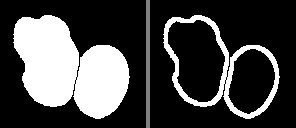
Fig. 7.1 Mask to Border input mask (left) and output border (right) using an inner width of 4 and an outer width of 0
7.19. Mask Overlap
Relabels a mask image using overlap between z and/or t dimensions. Allows mapping the same object through z and/or t dimensions with the same mask value.
The mask must be a 16-bit image with multiple z-slices or frames. Each object in an image plane must have a unique non-zero value. The values do not have to match between image planes. The plugin changes the values so that the same object has the same value in every image plane.
The plugin compares each image plane with the previous plane:
Compute the overlap of each object with the objects in the previous plane. The overlap is measured using the Intersection over Union (IoU): the number of pixels in both objects divided by the number of pixels in either object.
Match objects to objects in the previous plane with an IoU at or above a threshold. A matched object is assigned the value of the object in the previous plane.
Assign any unmatched object a new value that is not used by any other object.
For z overlap each z-slice is compared with the previous z-slice. For t overlap each frame is compared with the previous frame using all the z-slices of the frame. If both options are selected then the z overlap is performed first.
7.19.1. Plugin Interface
The Mask Overlap plugin uses a standard ImageJ dialog. The following parameters can be configured:
Parameter |
Description |
|---|---|
Mask |
The mask image. Only 16-bit images with multiple z-slices or frames are listed. |
All channels |
Process all the channels independently. If not selected then only the current channel is processed. |
Z overlap |
Relabel the objects using the overlap between z-slices. |
T overlap |
Relabel the objects using the overlap between frames. |
IoU threshold |
The minimum Intersection over Union (IoU) for objects to be matched. Objects must overlap to be matched; a threshold of zero matches objects with any overlap. |
Method |
The method used to match the objects:
|
7.19.2. Output
The object values in the mask image are changed. This cannot be undone. The maximum number of objects is 65535; an error is raised if more unique values are required.
The display range of the mask is set from zero to the maximum object value in the stack.